
Auto-Triage Your Data#
This guide shows how to build a reusable AI agent that triages a drone flight log: it inspects the telemetry, applies incident labels from a controlled vocabulary your team shares, marks key moments of the flight on a timeline, and writes a short triage report.
By the end of this guide you will have:
Two Skills that encode the detection rules for the
battery_failsafeandhigh_vibrationtriage labels: the exact conditions under which each label applies, and when it must not.An Agent that uses these skills and Goals to run the same triage on every new flight.
An automatically triaged dataset: incident labels applied as tags, a timeline of interesting events, and a triage report saved as the dataset summary.
This guide uses a real quadcopter flight from the public PX4 flight review database that ends in a battery failsafe (the flight controller cutting the mission short over battery state) alongside elevated vibration (mechanical noise that can degrade flight control). While this example uses PX4 ULog data, the same recipe works for any log format Roboto ingests and any triage procedure your team follows.
Preparation#
Create a Roboto Account and sign in.
Learn the core concepts of Roboto: Concepts.
This guide assumes your organization has a ULog ingestion trigger configured, so uploaded
.ulgfiles are ingested automatically. If yours does not, follow PX4 Triggers first.Create a dataset using the + icon in the top navigation bar, and name it something recognizable, e.g.
PX4 incident flight.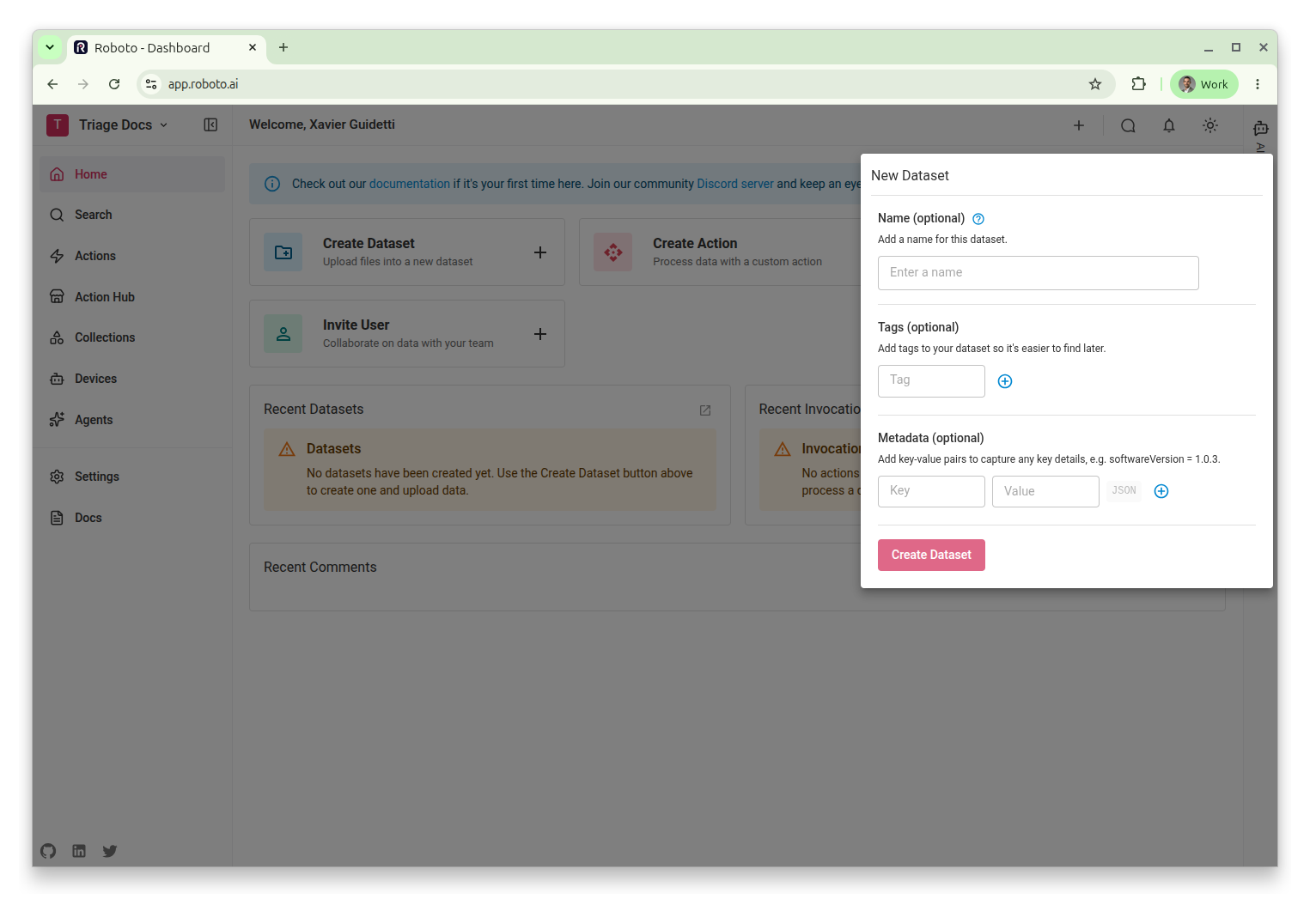
Download the sample flight log incident-flight.ulg and upload it to your dataset. Roboto ingests it automatically: a blue spinner next to the Actions tab indicates ingestion is in progress.
Once ingestion finishes, click the blue chevron next to the file to view its topics (among them
battery_status,vehicle_status,vehicle_imu_status_00, andsensor_combined), which the agent’s detection rules will reference by name.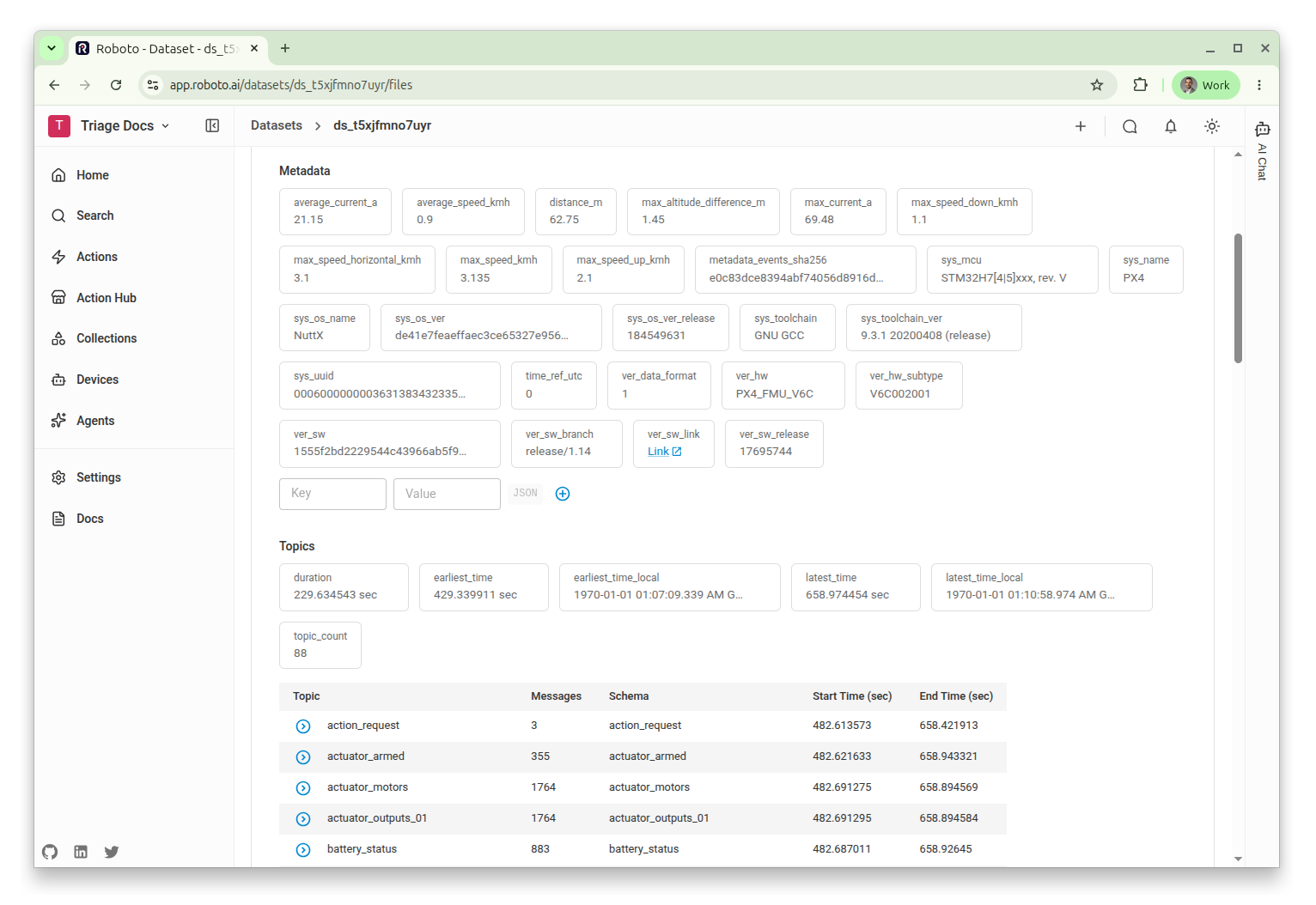
Create the Detection-Rule Skills#
Each skill in this guide is a stored procedure that encodes the detection rules for one triage label: the conditions under which the label applies, and, equally important, the conditions under which it must not apply. The agent consults these rules during triage instead of improvising its own thresholds, so every flight is judged by the same standard. A skill only decides whether to apply a label; recording that decision as a tag on the dataset is the job of the Dataset triage goal, defined later.
This guide creates one skill per label. A detection-rule skill’s body (the Markdown procedure you write) works well with three parts:
a one-line statement of what the label means,
an “Evidence to weigh” section listing the signals: topics, fields, and the few thresholds that matter,
a “Judgment calls — do NOT fire on” section ruling out the benign look-alikes (ground-only warnings, transient spikes, sensor glitches).
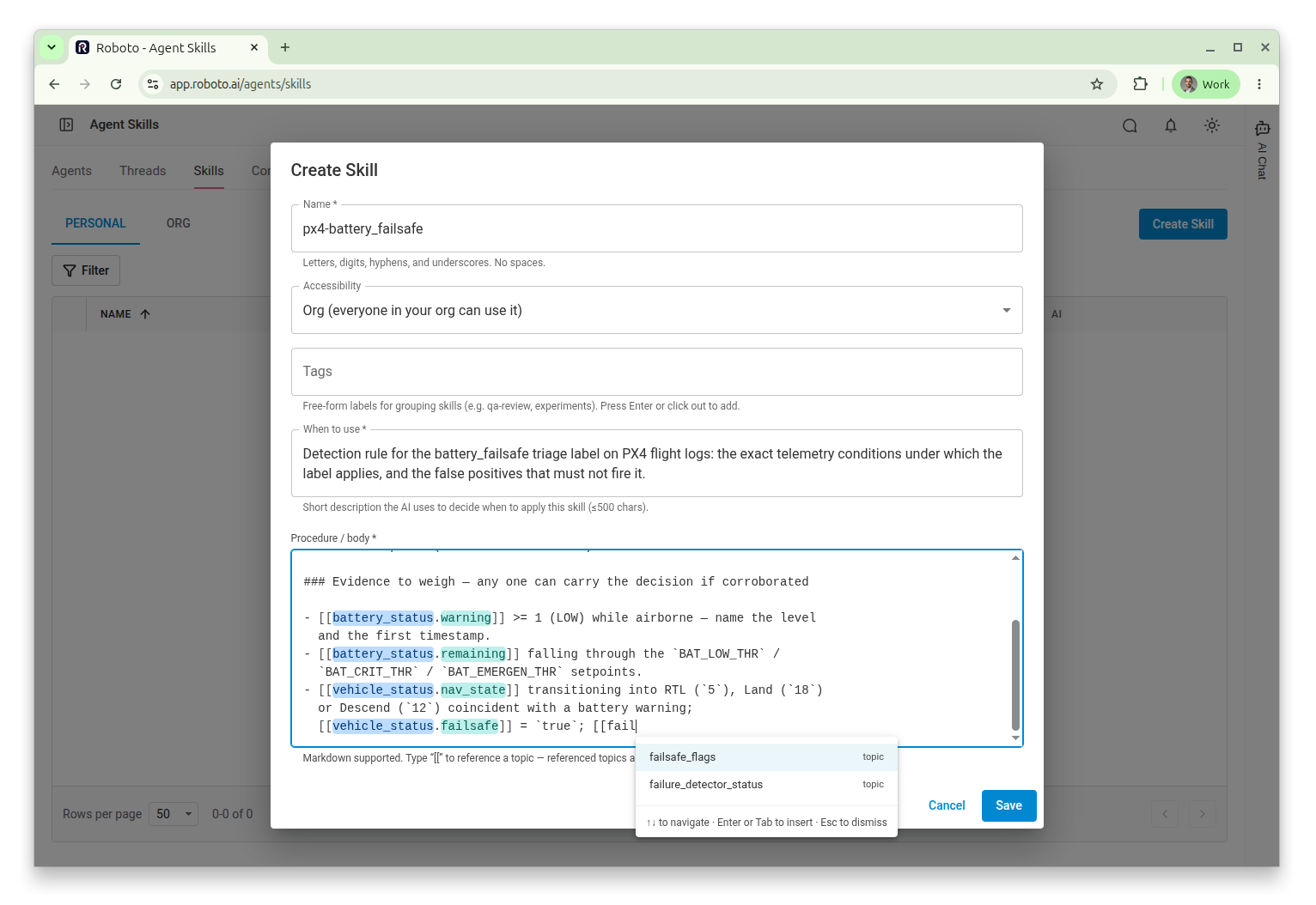
Topics are referenced in double square brackets, like [[battery_status]].
In Roboto’s skill editor, typing [[ opens an autocomplete over your organization’s ingested topics,
and . drills into fields (like [[battery_status.warning]]). References can only point at topics that exist.
Go to Agents → Skills and click Create Skill. Name the skill
px4-battery_failsafeand give it a description of when it should be used; the AI reads the description when deciding whether a skill is relevant:Detection rule for the battery_failsafe triage label on PX4 flight logs: the exact telemetry conditions under which the label applies, and the false positives that must not apply it.
Paste the following Markdown into the skill body and save:
Skill body —
px4-battery_failsafe# px4-battery_failsafe Apply **`battery_failsafe`** when the battery degraded the mission in flight: a warning level was reached airborne, or a battery-driven failsafe response (RTL / Land / Descend) fired. ### Evidence to weigh — any one can carry the decision if corroborated - [[battery_status.warning]] >= 1 (LOW) while airborne — name the level and the first timestamp. - [[battery_status.remaining]] falling through the `BAT_LOW_THR` / `BAT_CRIT_THR` / `BAT_EMERGEN_THR` setpoints. - [[vehicle_status.nav_state]] transitioning into RTL (`5`), Land (`18`) or Descend (`12`) coincident with a battery warning; [[vehicle_status.failsafe]] = `true`; [[failsafe_flags.battery_warning]] >= 1. - Battery-failsafe messages in [[console_logs]] and [[event]] ("Failsafe activated due to low/critical battery level", "Battery <N> disconnected"). ### Judgment calls — do NOT fire on - Transient voltage sag under load that recovers, with `warning` never leaving 0. - Invalid sentinels: `voltage_v == 0`, `current_a == -1`, `remaining == -1`. - Ground-only preflight chatter ("Preflight Fail: low battery") with no in-flight warning and no failsafe action. Airborne-vs-ground, transient-vs-sustained, and whether signals corroborate are your call — the log rarely states them directly.
Set the skill’s accessibility to Org, so it’s available to your whole team (attachable to any agent and usable in interactive chat sessions), not just the agent you build in this guide.
Create the second skill the same way: name it
px4-high_vibration, with the descriptionDetection rule for the high_vibration triage label on PX4 flight logs: when elevated vibration warrants the label, and the benign dynamics that must not fire it.
and this body:
Skill body —
px4-high_vibration# px4-high_vibration Apply **`high_vibration`** when accelerometer/gyro vibration was elevated to a level that can degrade state estimation or control. ### Evidence to weigh — any one can carry the decision if corroborated - Accel clipping: `accel_clipping[0..2]` counters incrementing in [[vehicle_imu_status_00]] / [[vehicle_imu_status_01]] (check every instance); "Accel <N> clipping, not safe to fly!" in [[console_logs]]. - `accel_vibration_metric` / `gyro_vibration_metric` (same topics) sustained above roughly 30 m/s², or a ≥3× rise over the hover baseline corroborated by clipping, raw-accel overlap, or rising estimator innovation ratios. - The z-axis trace of [[sensor_combined]] `accelerometer_m_s2` touching or overlapping x/y during hover or slow flight. - [[sensor_gyro_fft]] showing broad or high-frequency peaks instead of a single peak below ~20 Hz (when high-rate logging is present). ### Judgment calls — do NOT fire on - Metrics below ~30 m/s² with no clipping and no raw-accel overlap — however the metric moves relative to its own baseline. Healthy flights sit in the low single digits; 0.7 → 6 is normal dynamics. - Brief spikes during aggressive maneuvers or at touchdown. - Filter tuning parameters (`IMU_GYRO_CUTOFF`, notch filters) — knobs, not evidence. Judge against the hover/slow-flight portion; separating maneuvers from sustained vibration is your call.
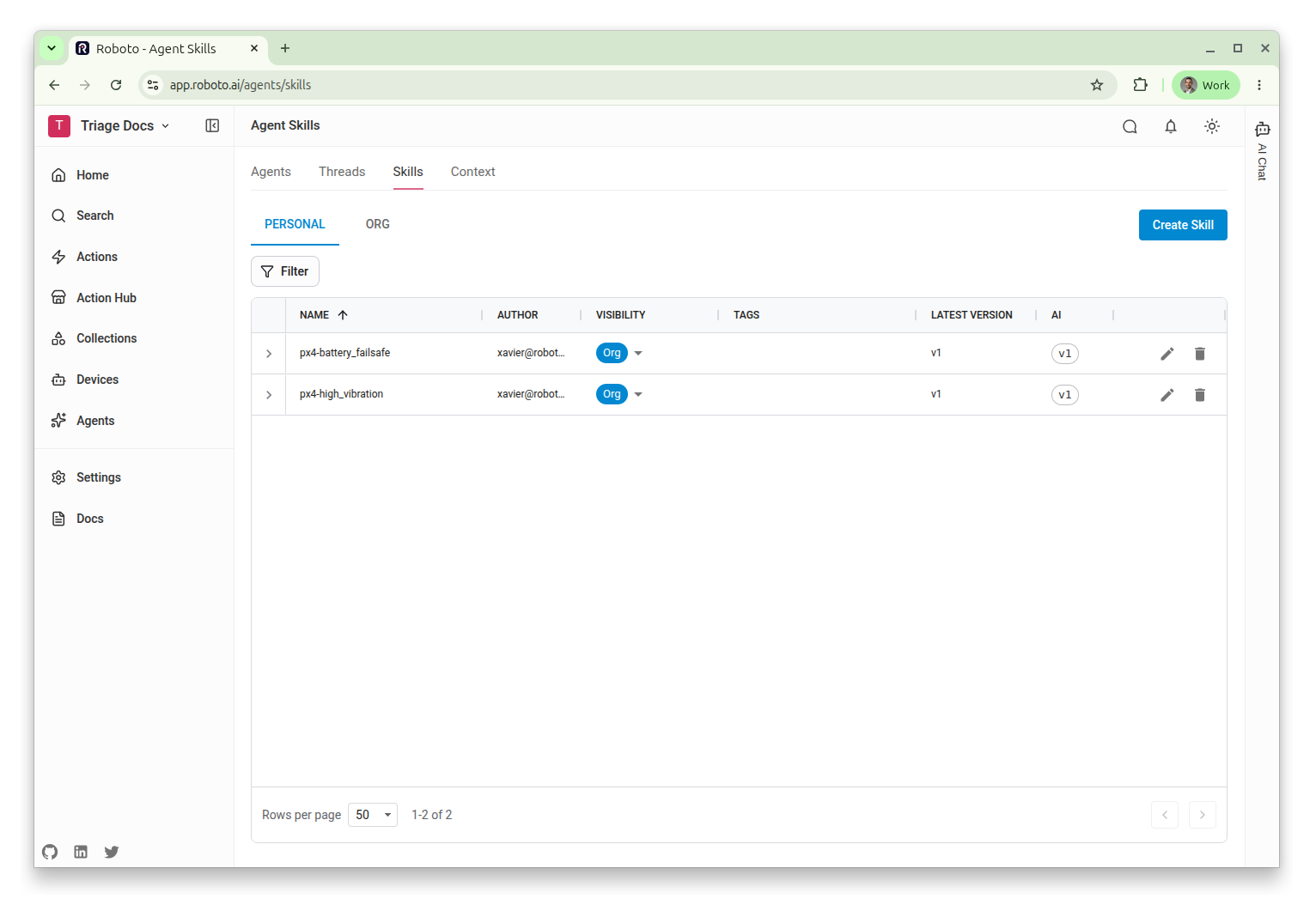
Both skills now appear in your Skills list.
Create the Agent#
Now assemble the agent: a prompt describing the triage procedure, three goals that turn the AI’s findings into structured results on the dataset, and the two detection-rule skills.
Go to Agents → Create Agent. Name the agent
triage-px4-flight-logand describe what it does:Triage a PX4 ULog flight recording: build a milestone timeline, apply incident labels, and write a triage report.
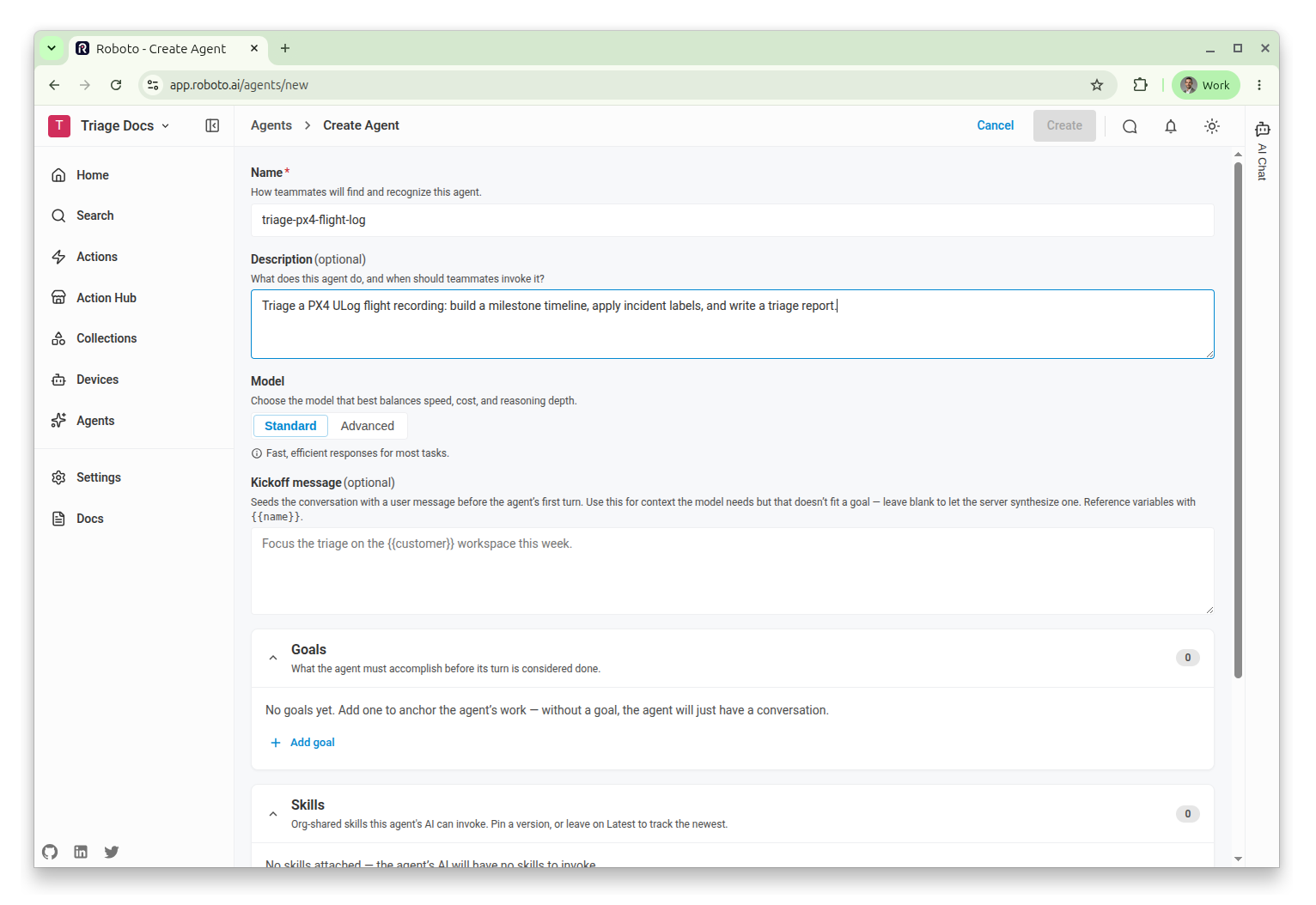
Enter the agent’s prompt in the Kickoff message field. It’s useful to have the prompt reference the outputs the goals will define later, e.g., the triage vocabulary, the milestone timeline, and the report:
Kickoff message — the agent’s prompt
You are a flight-log triage analyst for PX4-based drones. The dataset
{{dataset.id}} contains one PX4 ULog (.ulg) flight recording uploaded for
triage. It may capture an operational incident or a fully nominal flight —
do not assume an incident occurred; establish it from the evidence, and
report a clean flight as clean.

Work in this order:
1. Get an overview of the dataset. Review the flight's logged messages and
   events for structured signals before reading raw topic data.
2. Triage: for each label in the triage vocabulary, consult the matching
   px4-<label> skill and decide whether the label applies based on its
   detection rules. Only assign a label when its rule fires — zero labels
   is a valid outcome.
3. Build the milestone timeline.
4. Write the report.

Avoid speculation. Describe only what the logs directly show.
Tip
Step 1 works from structure Roboto has already extracted: logged messages, events, and topic schemas are parsed and queryable, so the agent orients from structured signals instead of sampling raw data blindly.
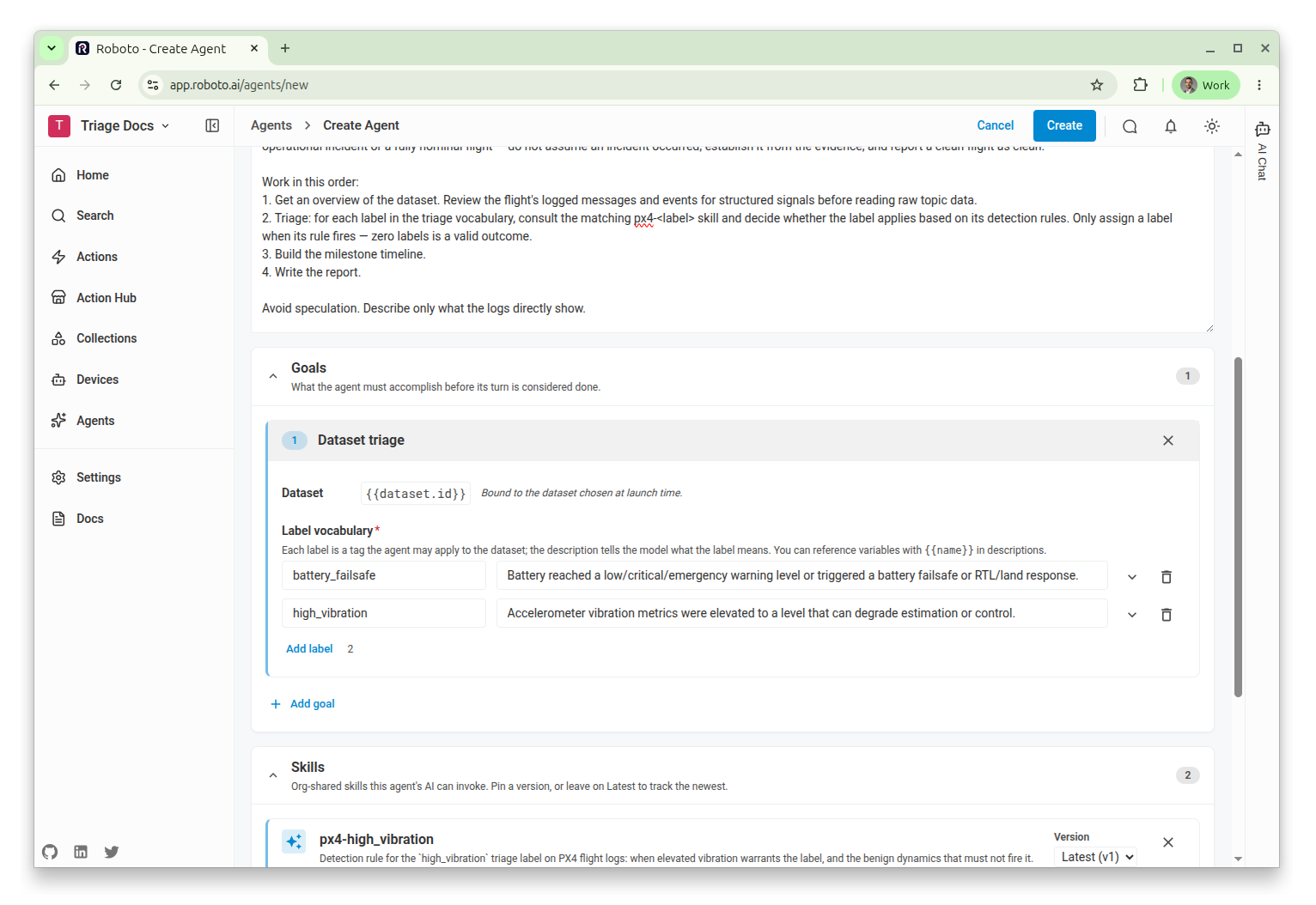
In the Goals panel, add a Dataset triage goal. You supply a label vocabulary (a controlled set your team manages in one place and can later filter on to find similar flights), and the AI must record an explicit decision, with justification, for every label. When a rule fires, the goal writes the label to the dataset as a tag automatically; the prompt never has to instruct it. Enter the two labels:
Label
Description
battery_failsafeBattery reached a low/critical/emergency warning level or triggered a battery failsafe or RTL/land response.
high_vibrationAccelerometer vibration metrics were elevated to a level that can degrade estimation or control.
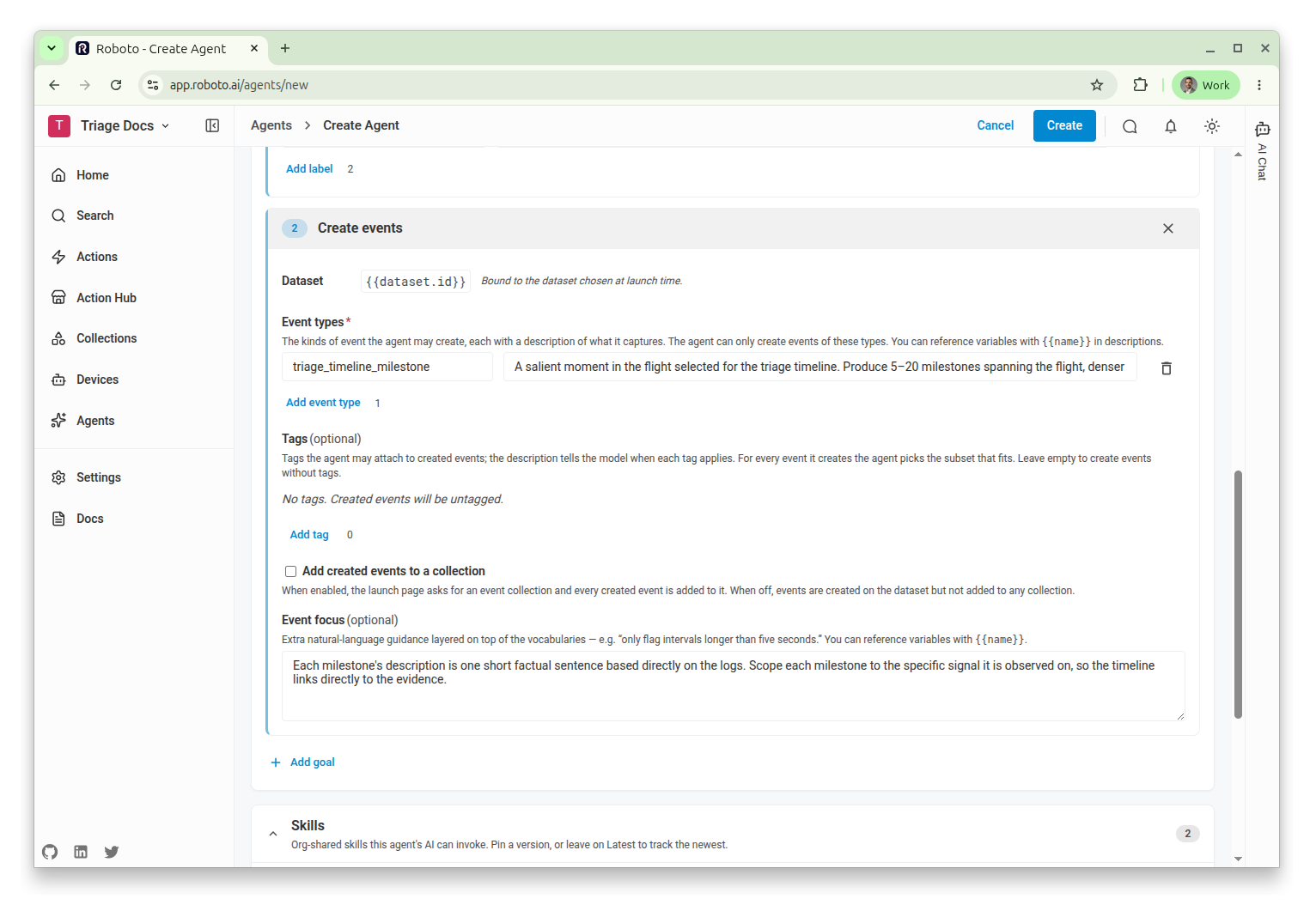
Add a Create events goal, so the flight’s key moments land on the dataset timeline. Define one event type:
Event type
Description
triage_timeline_milestoneA salient moment in the flight selected for the triage timeline. Produce 5–20 milestones spanning the flight, denser around incidents. Include arming, takeoff, mode changes, the incident(s), and the final state (landed/disarmed/log end).
In the goal’s focus prompt, ask for precision:
Each milestone's description is one short factual sentence based
directly on the logs. Scope each milestone to the specific signal it
is observed on, so the timeline links directly to the evidence.
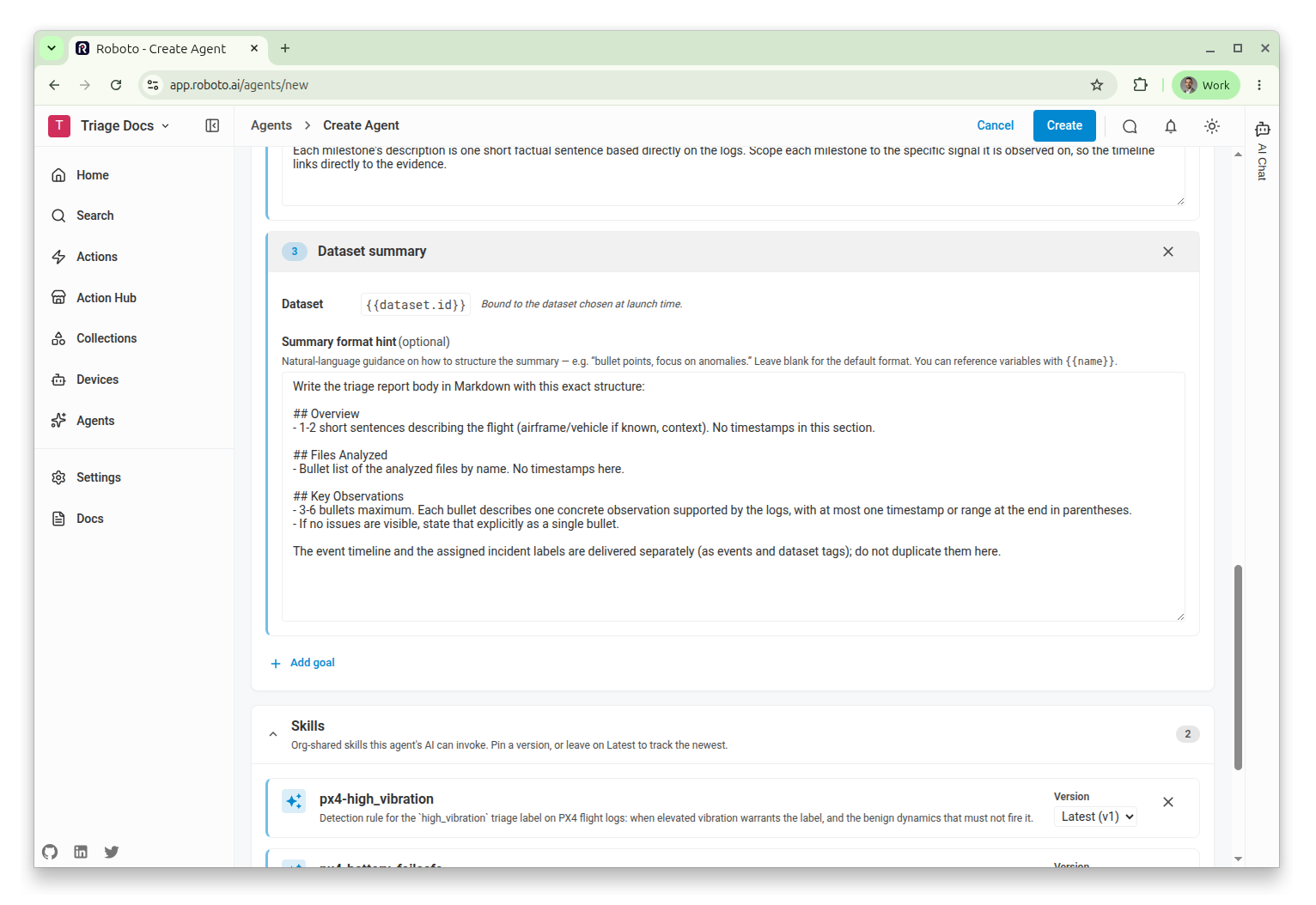
Add a Dataset summary goal, which persists the triage report to the dataset page. Use the format-spec prompt to pin the report’s structure:
Format-spec prompt — the report’s structure
Write the triage report body in Markdown with this exact structure:

## Overview
- 1-2 short sentences describing the flight (airframe/vehicle if known,
  context). No timestamps in this section.

## Files Analyzed
- Bullet list of the analyzed files by name. No timestamps here.

## Key Observations
- 3-6 bullets maximum. Each bullet describes one concrete observation
  supported by the logs, with at most one timestamp or range at the end
  in parentheses.
- If no issues are visible, state that explicitly as a single bullet.

The event timeline and the assigned incident labels are delivered
separately (as events and dataset tags); do not duplicate them here.
In the Skills panel, attach
px4-battery_failsafeandpx4-high_vibration. The agent will consult exactly these rules during triage.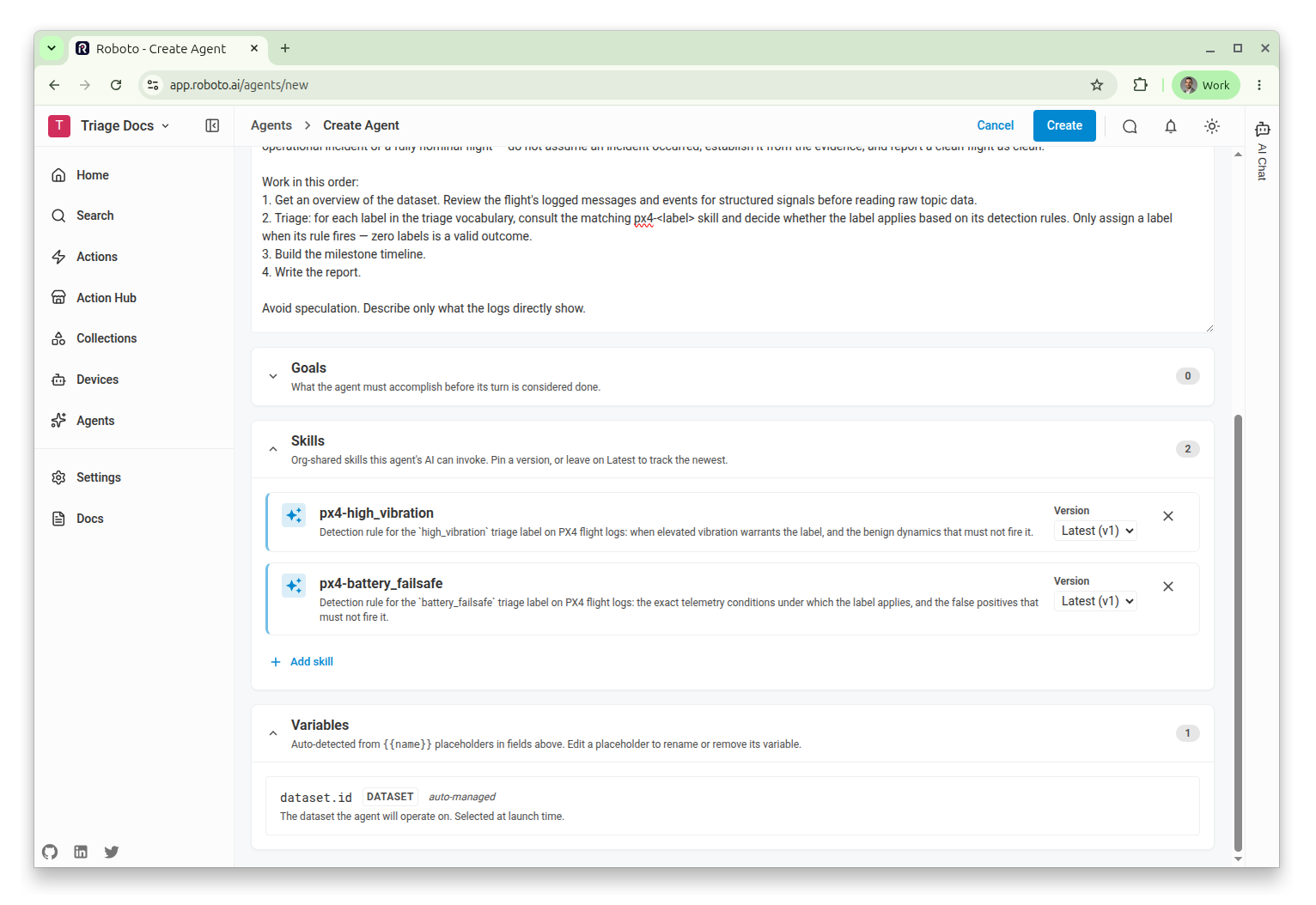
The
{{dataset.id}}placeholder is picked up automatically and appears in the Variables panel as a required Dataset variable. Roboto validates the value at launch, so you can’t start the agent against a nonexistent dataset.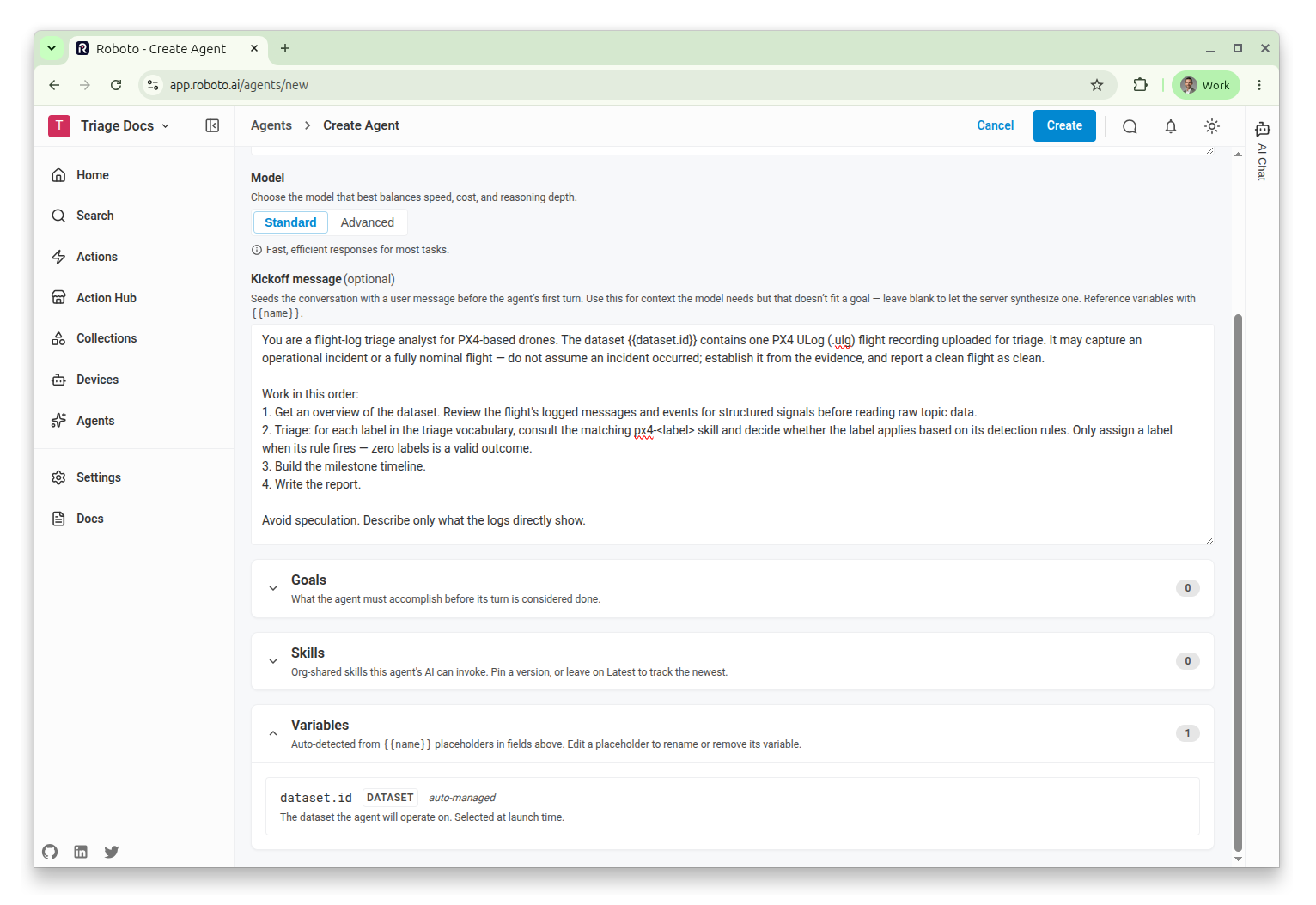
Save the agent by clicking Create.
Launch the Agent#
From the agent’s page, click Launch. Choose the dataset you created earlier (the typed variable offers a dataset picker), and start the run by clicking Launch again.
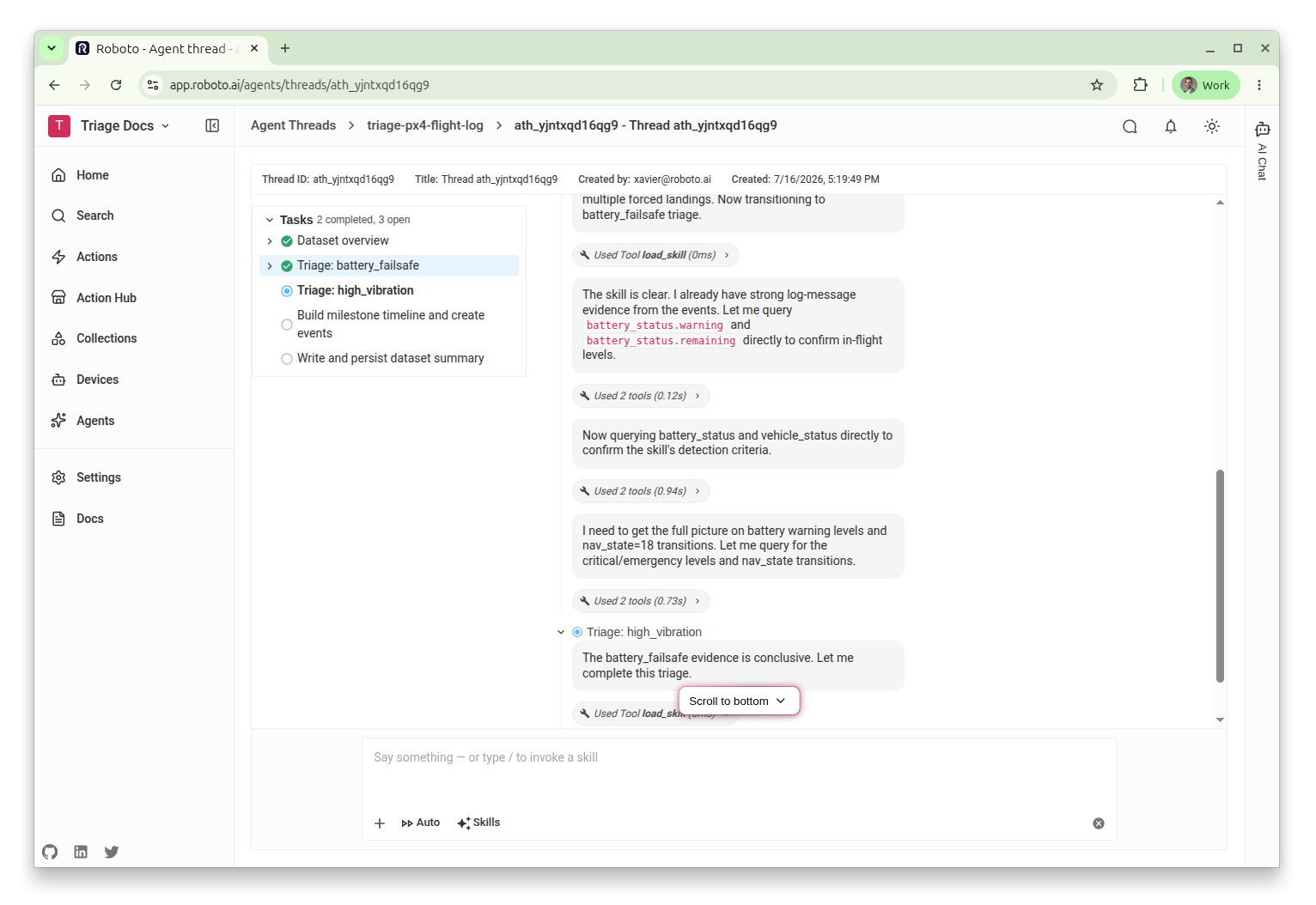
A thread opens and the agent gets to work: watch it query the logged messages, load each skill, and check the telemetry topics the rules reference. The three goals start out pending; the run completes successfully only once every goal is achieved.
Review the Results#
When the run completes, the thread shows the outcome of each goal. Scroll to the bottom of the agent thread to read a summary of the resolved goals.
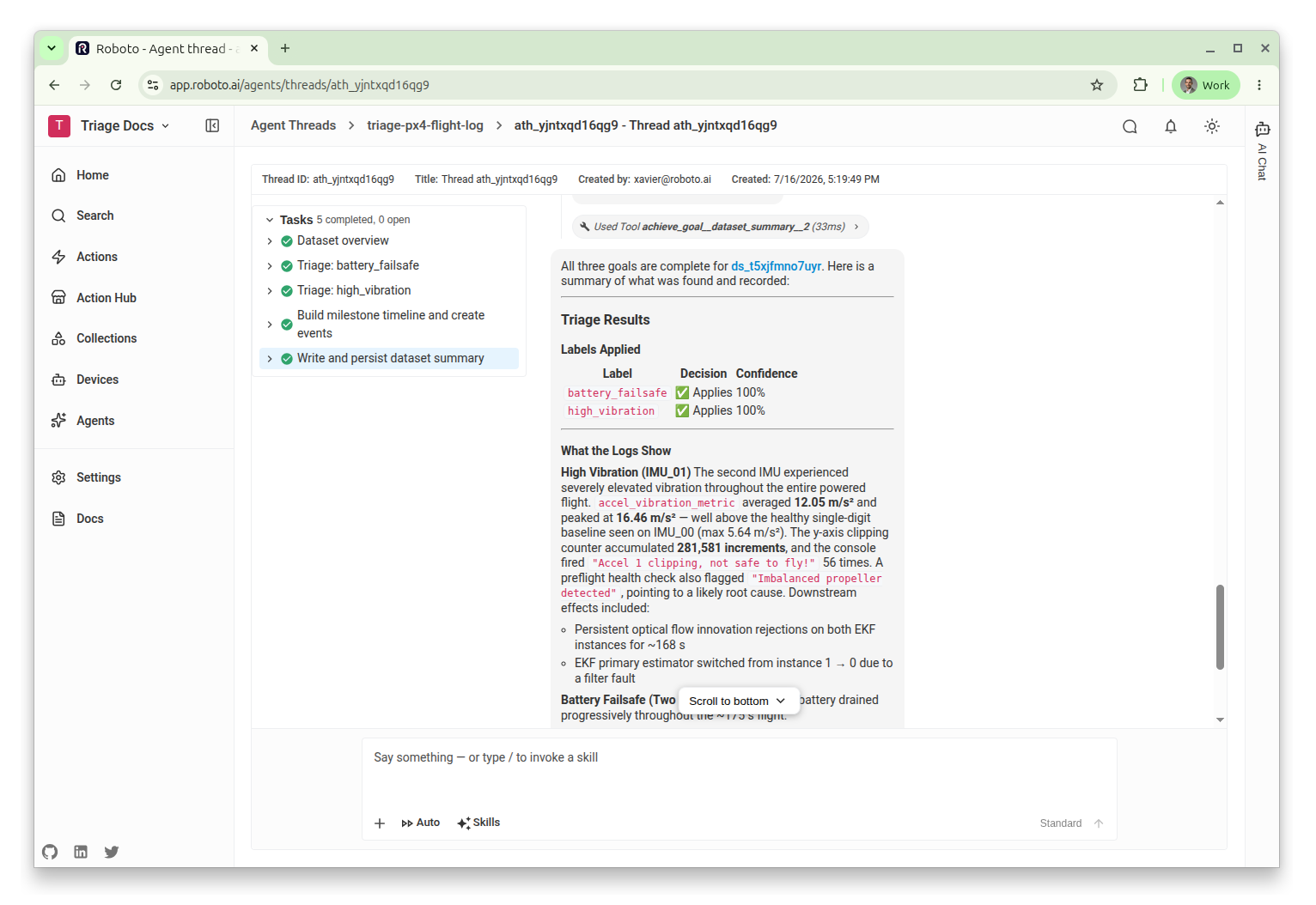
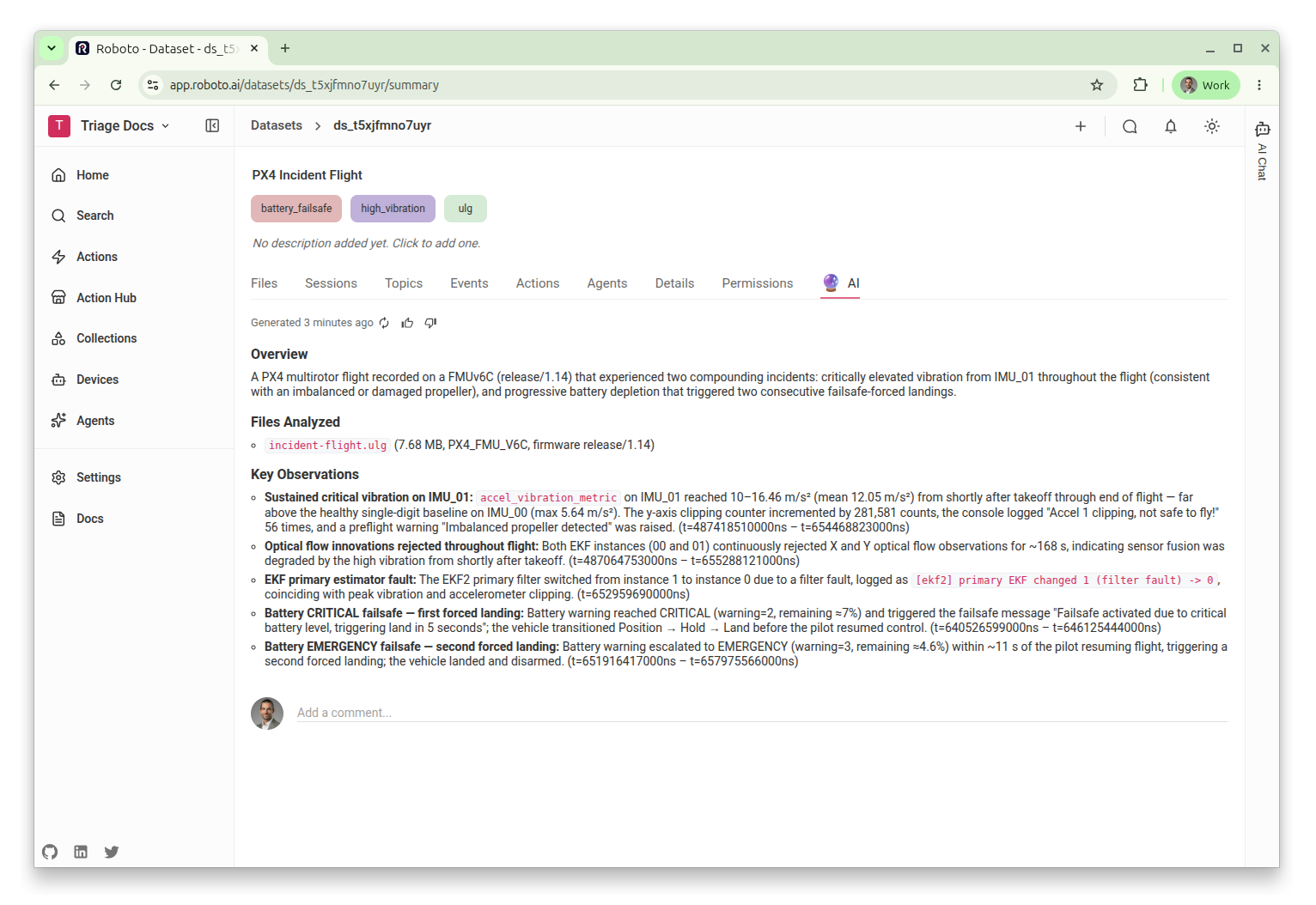
Navigate back to the dataset. The incident labels are applied as tags, and the triage report appears as the dataset summary, following the specified structure.
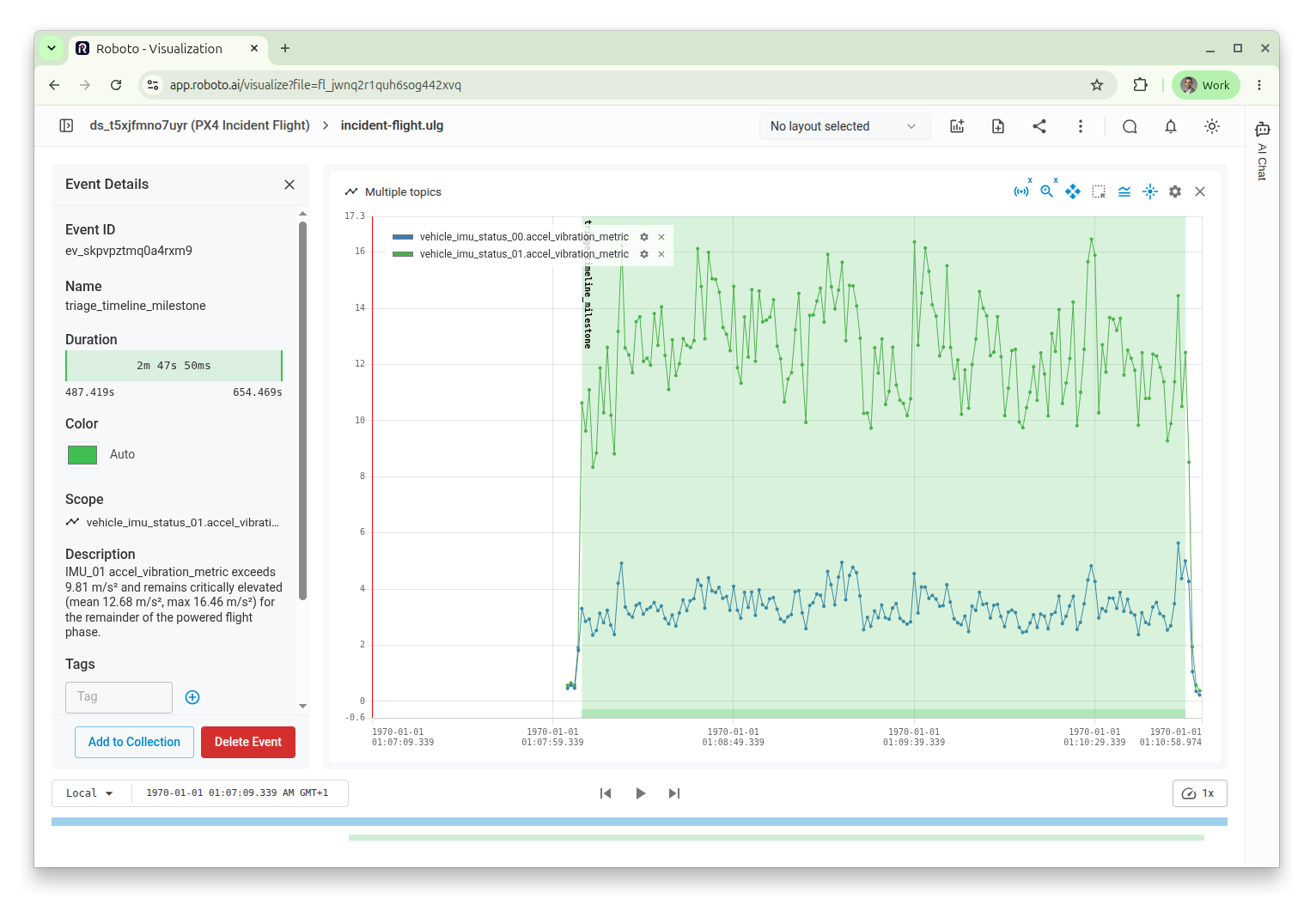
Open the file in the visualizer to see the timeline milestones the agent created (for example, excessive acceleration), each linked to the signal where it was observed.
Test on a Nominal Flight#
The real test of detection rules is a flight where nothing happened. Create a second dataset, upload the nominal sample log nominal-flight.ulg, and launch the agent on it.
This time the triage goal records an explicit does not apply decision for both labels — the “do NOT fire” sections of the skills rule out the benign voltage sag and maneuvering vibration — and the report states the flight was clean. No tags are applied.
Conclusion#
You’ve built a complete AI triage workflow in the UI: detection rules captured as versioned skills, a reusable agent that applies them, and goals that turn the AI’s findings into tags, timeline events, and a report on the dataset itself.
From here you can:
Grow the vocabulary. Add a label by adding a skill and a row in the triage goal; the agent picks up both automatically on its next launch.
Launch it programmatically. Launch the same agent from the SDK too. See Agents and Threads.
Run it on every upload. Triggers invoke actions, and an action can launch your agent through the SDK. Pair a trigger with an action to triage every new flight log automatically as it’s uploaded. See Create your Own Action and PX4 Triggers.
Sync to your issue tracker. Use Actions to export and sync your triage labels and summaries to issue trackers such as Jira or GitLab.