
Auto-Curate Your Data#
Robotics teams collect far more data than anyone can review by hand. The interesting moments — a hard landing, a stair climb, a near-miss — are buried in hours of normal operation. This guide shows how to go from raw logs to a curated set of events automatically: you describe what qualifies as an interesting moment once, and Roboto’s AI finds every occurrence and organizes them into a Collection for you.
By the end of this guide you will have:
A Skill that captures how to detect a Stair Climb Event from the elevation signal and the front camera topic.
An Agent that applies the skill to any dataset and — through a Goal — is required to create the events it finds and add them to a collection.
A Collection of validated Stair Climb Events, ready for downstream review or conversion into an ML-ready format like LeRobot.
We’ll use two example logs from the GrandTour Dataset, recorded on an ANYmal legged robot.
Preparation#
Create a Roboto Account and sign in.
Learn the core concepts of Roboto: Concepts.
This guide assumes your organization has a ROS ingestion trigger configured, so uploaded
.mcapfiles are ingested automatically. If yours does not, follow ROS Triggers first.Download the two sample logs: arche_small.mcap and polyterrasse_small.mcap.
Using the + icon in the top navigation bar, create a dataset and upload
arche_small.mcapto it. Then create a second dataset forpolyterrasse_small.mcap. We’ll use the first dataset to develop and test the skill, and the second to run the agent unattended.Roboto ingests the
.mcapfiles automatically on upload. Once ingestion completes, each dataset has the two topics this guide uses: the state estimator (/anymal/state_estimator/anymal_state) and the front camera (/boxi/hdr/front/image_raw/compressed).
Create a Skill#
A Skill is a stored, versioned procedure for Roboto’s AI. Writing the stair-climb detection logic as a skill means everyone on your team — and every agent — can run the same investigation.
Go to Agents → Skills in the web app and click Create Skill. Name it
detect_stair_climband fill in the two fields:When to use — the short description the AI reads when deciding whether the skill applies to a request:
Apply this skill to determine if a stair climb can be observed in provided data.
Procedure / body — the instructions the AI follows:
Find instances of stair climbing.

First, look at [[/anymal/state_estimator/anymal_state.contacts.position.z]]
and find periods where there is a significant elevation change (>0.4m).

Second, look at the [[/boxi/hdr/front/image_raw/compressed]] images and
validate that the robot is climbing stairs.

For each validated stair climb, create a Roboto Event.
Type
[[in the editor to reference a topic — referenced topics are pre-loaded for the AI, so it starts the investigation already knowing where to look.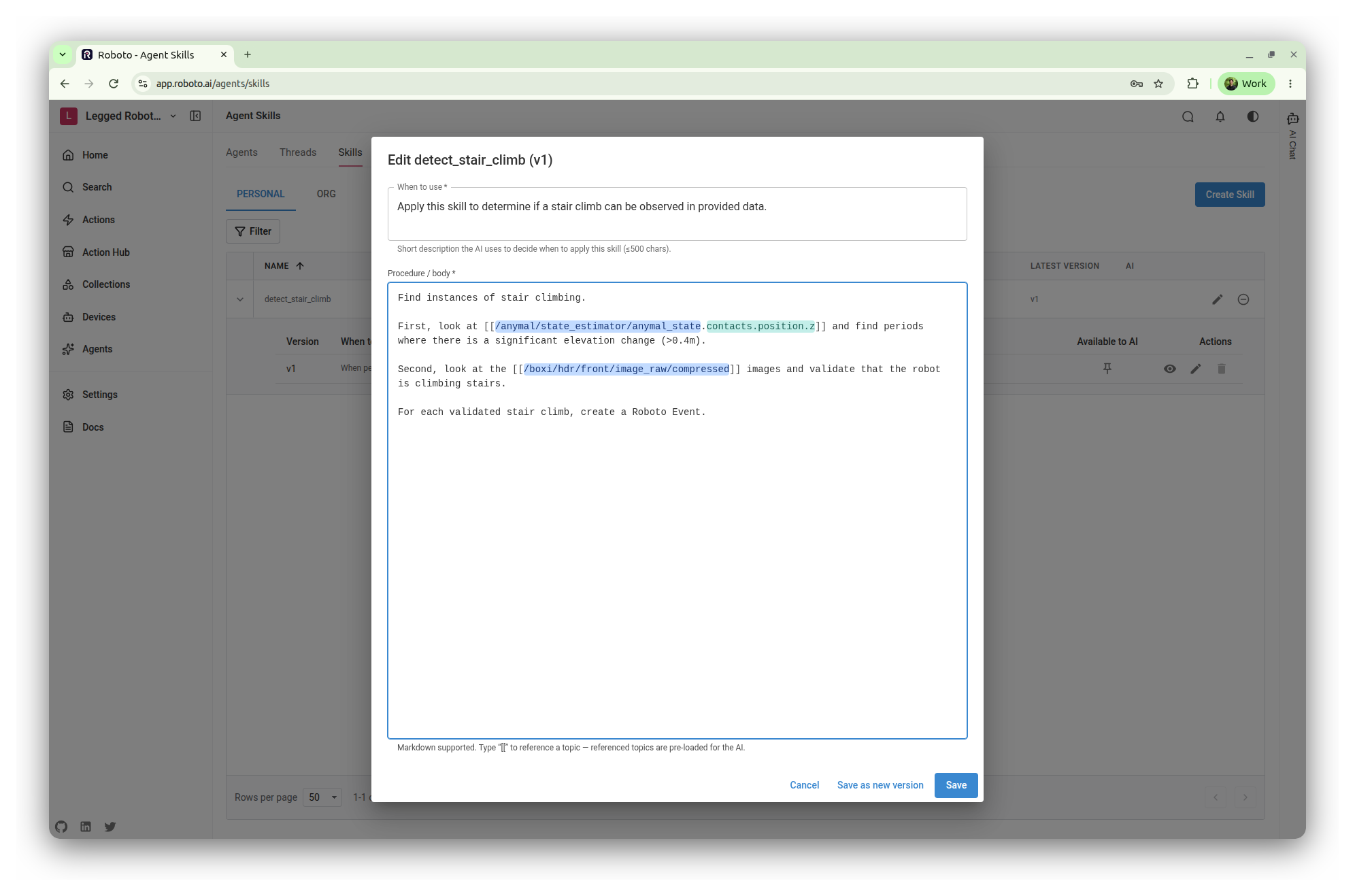
Note how the procedure combines two signals: a numeric threshold on the elevation channel to find candidates, and the camera to validate that a candidate is a staircase, not a ramp or slope. Being explicit about the signals and the decision rule makes a skill reliable; vague instructions leave the AI room to guess.
Tip
You can also create a skill interactively: explore a dataset in AI Chat until the investigation works, then ask the AI to save the conversation as a skill. It drafts the name, description, and body for your review — nothing is saved until you approve it.
Test the Skill on the First Dataset#
Open
arche_small.mcapfrom the first dataset in the visualizer, and open AI Chat from the sidebar on the right. Type/in the chat composer and selectdetect_stair_climbto invoke the skill on this file.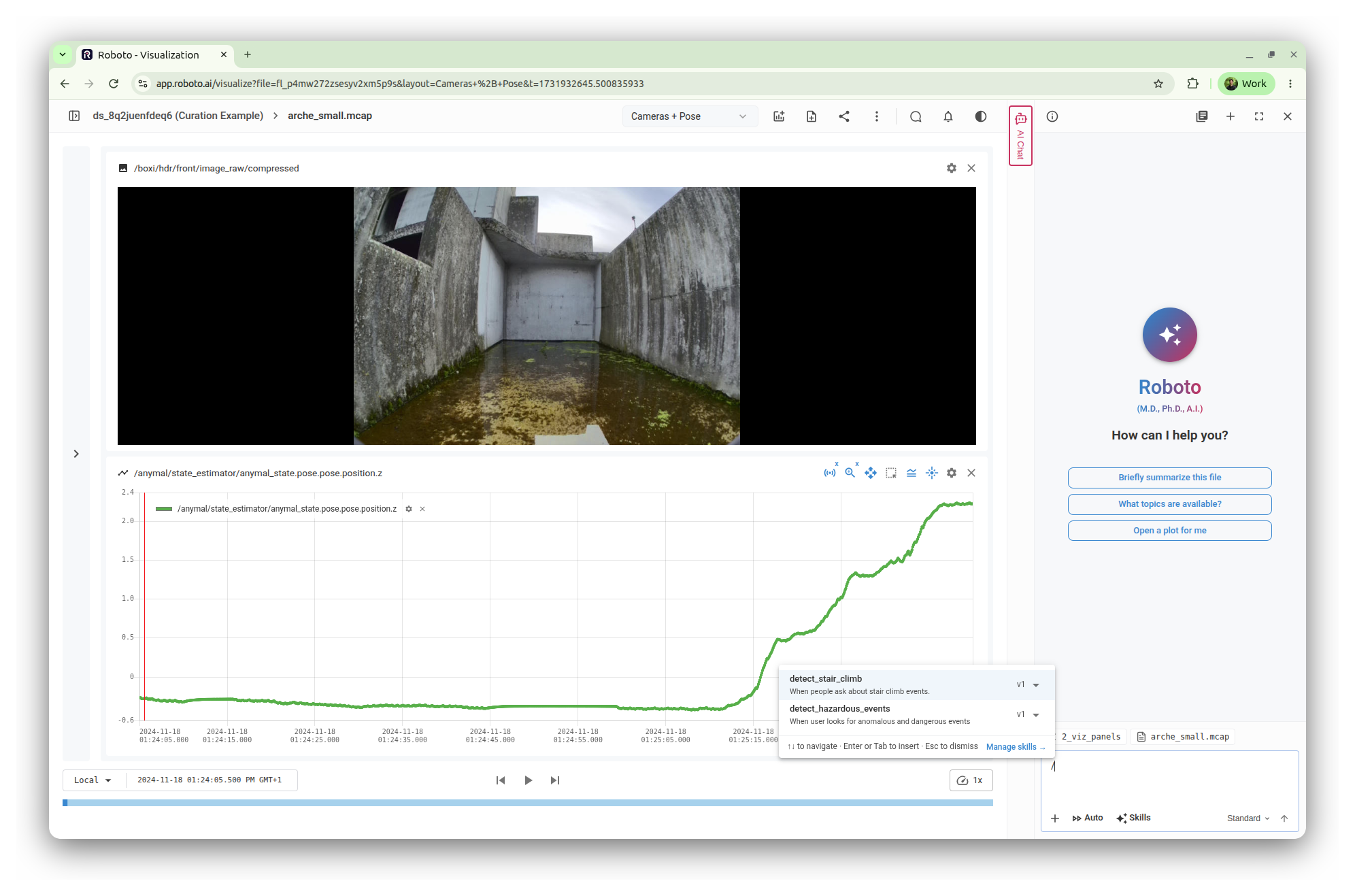
The AI works through the procedure: it analyzes the elevation channel for candidate intervals, samples camera frames to confirm the robot is on a staircase, and creates a Stair Climb Event for the confirmed interval. When it finishes, the event appears on the timeline, and the chat explains how it was detected — the threshold crossing, the visual confirmation, and the event boundaries.
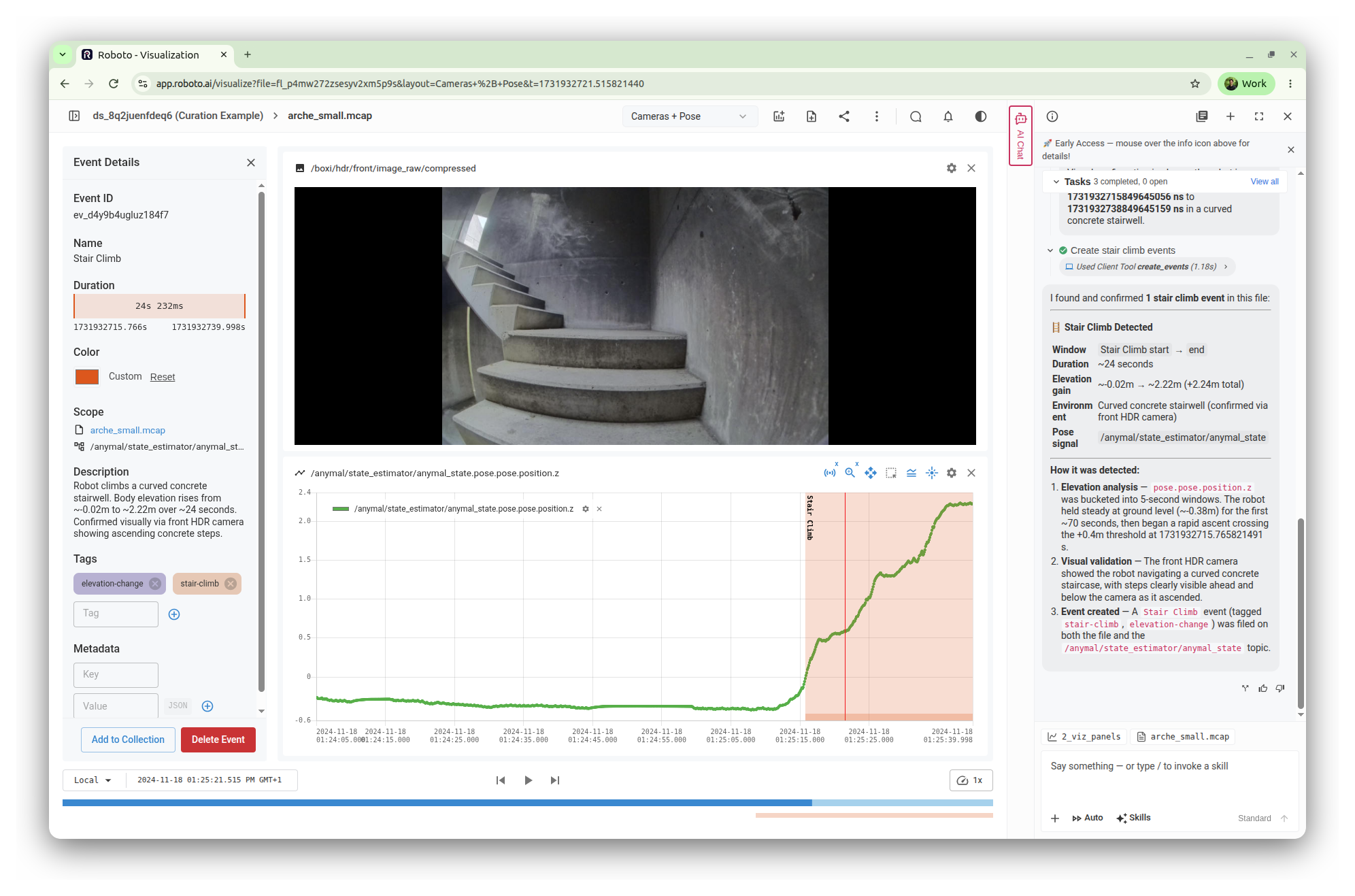
The event is now part of the dataset — you can inspect its time bounds against the camera and plot, adjust it, or delete it like any other event.
Create an Agent#
Testing the skill in chat works well for a single dataset, but doesn’t scale to every new recording. That’s what an Agent is for: a named, reusable AI worker that binds instructions, skills, and a required Goal to typed variables — so anyone on your team can run the same curation job on a new dataset with one click.
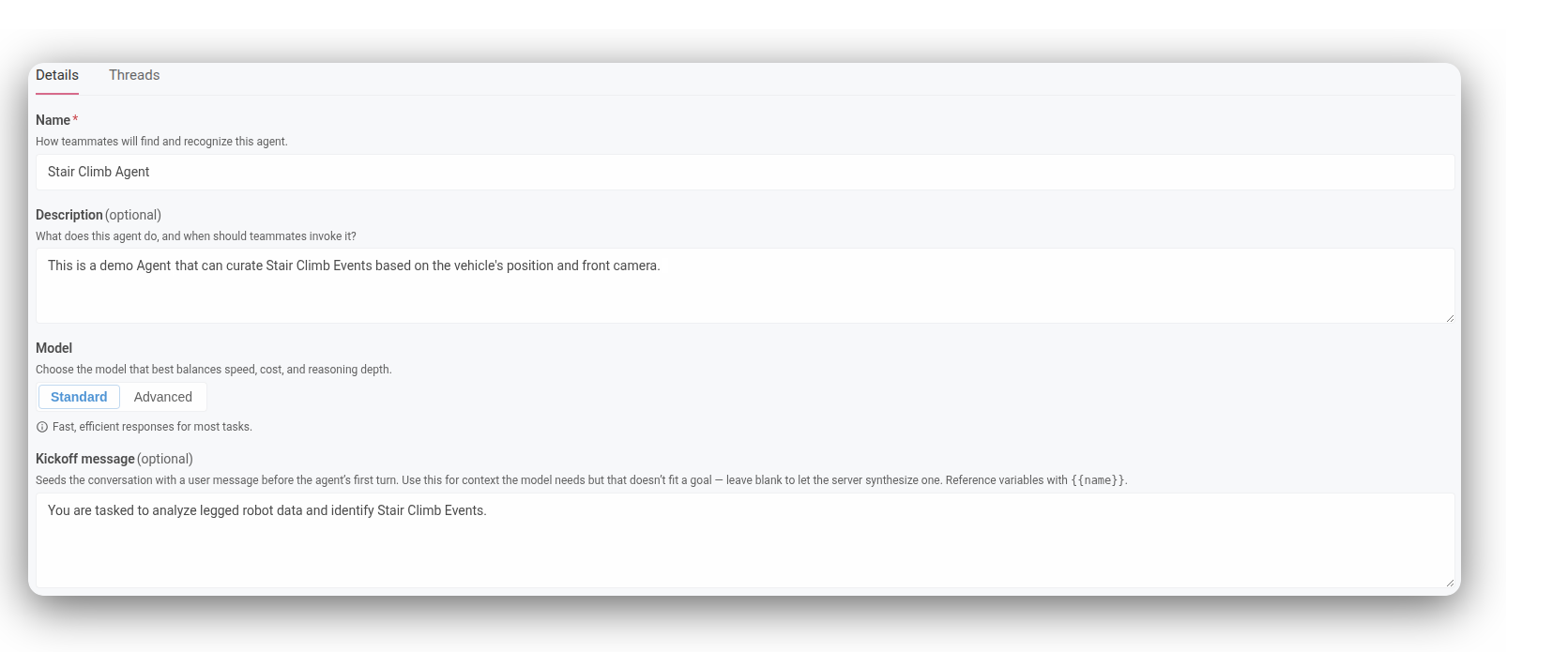
Go to Agents → Create Agent and fill in the Details section:
Name:
Stair Climb AgentDescription:
A demo agent that curates Stair Climb Events based on the robot's position and front camera.Model:
StandardKickoff message:
You are tasked to analyze legged robot data and identify Stair Climb Events.
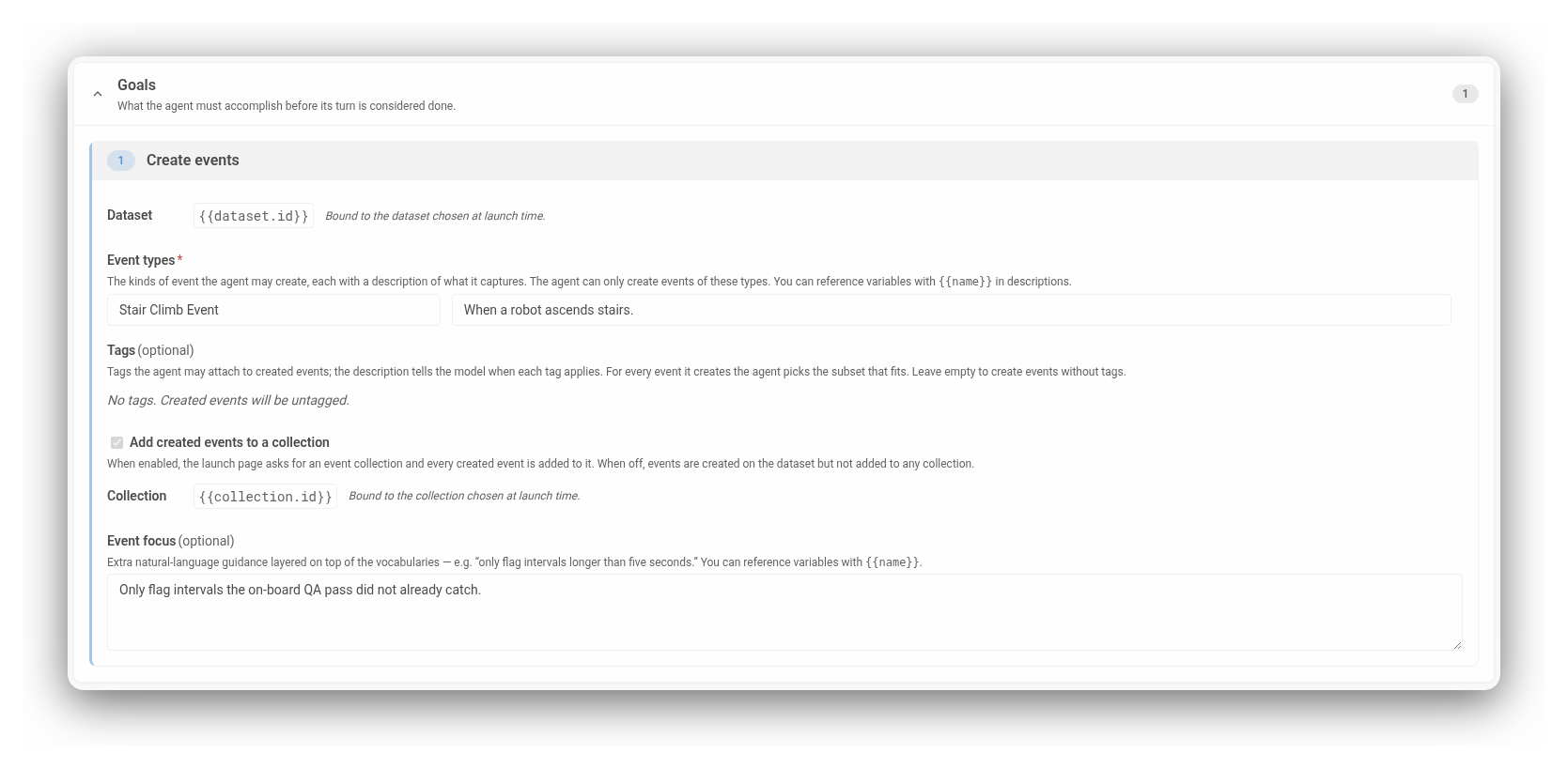
In the Goals section, add a Create events goal. A goal is a required outcome: the agent’s turn succeeds only after the goal is achieved, making the workflow dependable enough to run unattended.
Dataset: bound to
{{dataset.id}}— filled in at launch time.Event types: one entry,
Stair Climb Eventwith the descriptionWhen a robot ascends stairs.The agent can only create events of the types you declare here.Add created events to a collection: enabled. The collection is bound to
{{collection.id}}, also filled in at launch time.
In the Skills section, attach
detect_stair_climbso the agent investigates datasets using the exact procedure you tested. Pin a version, or leave it on Latest to track the newest.
Save the agent.
Tip
Like skills, agents can also be created from a conversation: ask AI Chat to turn the current thread into a reusable agent, then review and save the pre-filled draft.
Create a Collection for the Events#
Go to Collections, click + New, and create an empty collection to receive the curated events:
Name:
stair_climb_collectionDescription:
Collection with auto-curated stair climb eventsEntity type:
Event
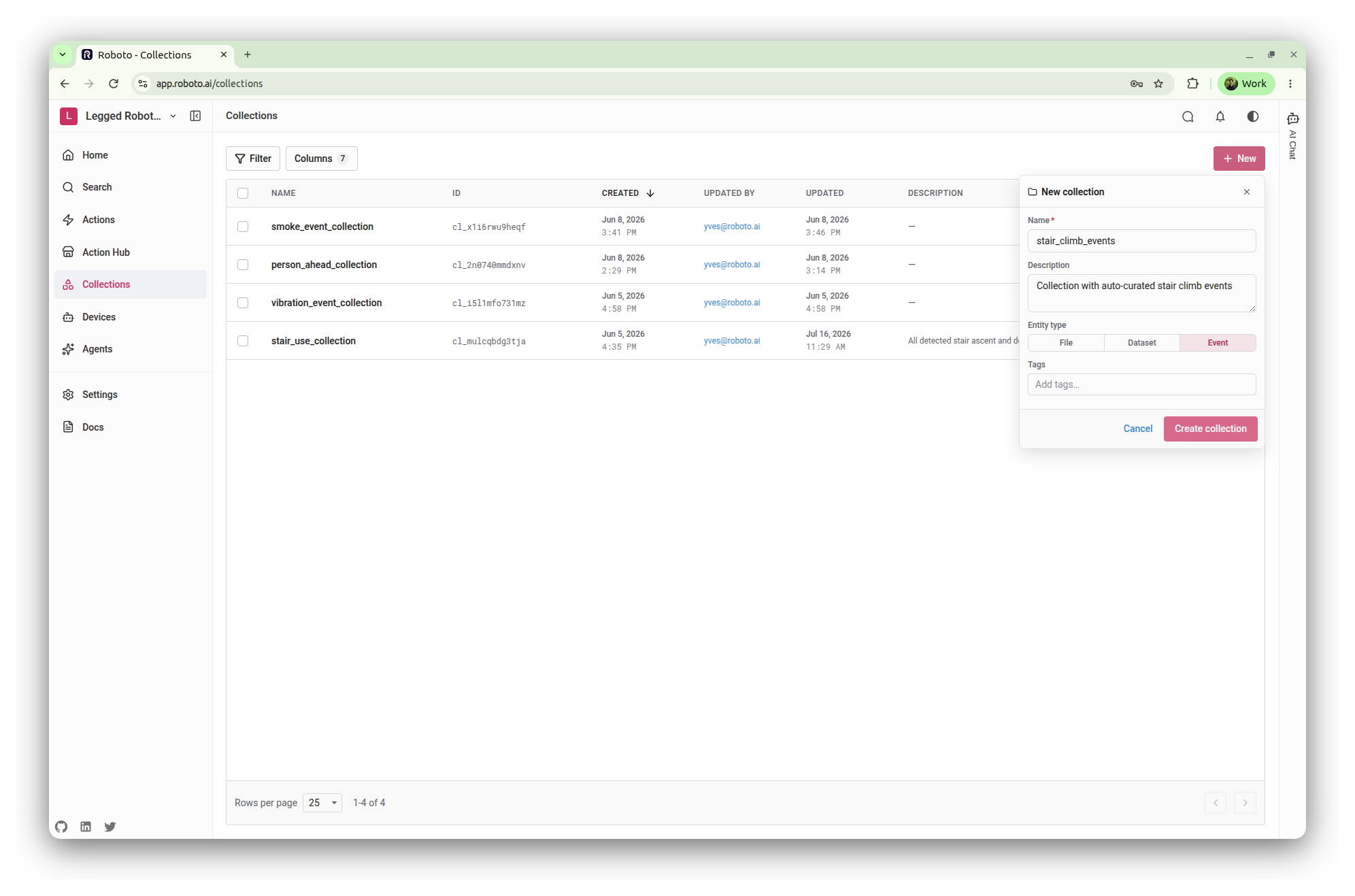
Copy the new collection’s ID (it starts with cl_) — you’ll need it at launch.
Launch the Agent on the Second Dataset#
Open the Stair Climb Agent and click Launch. The launch form asks for the agent’s two variables: the collection you just created, and the second dataset (the one holding
polyterrasse_small.mcap) — a dataset the agent has never seen.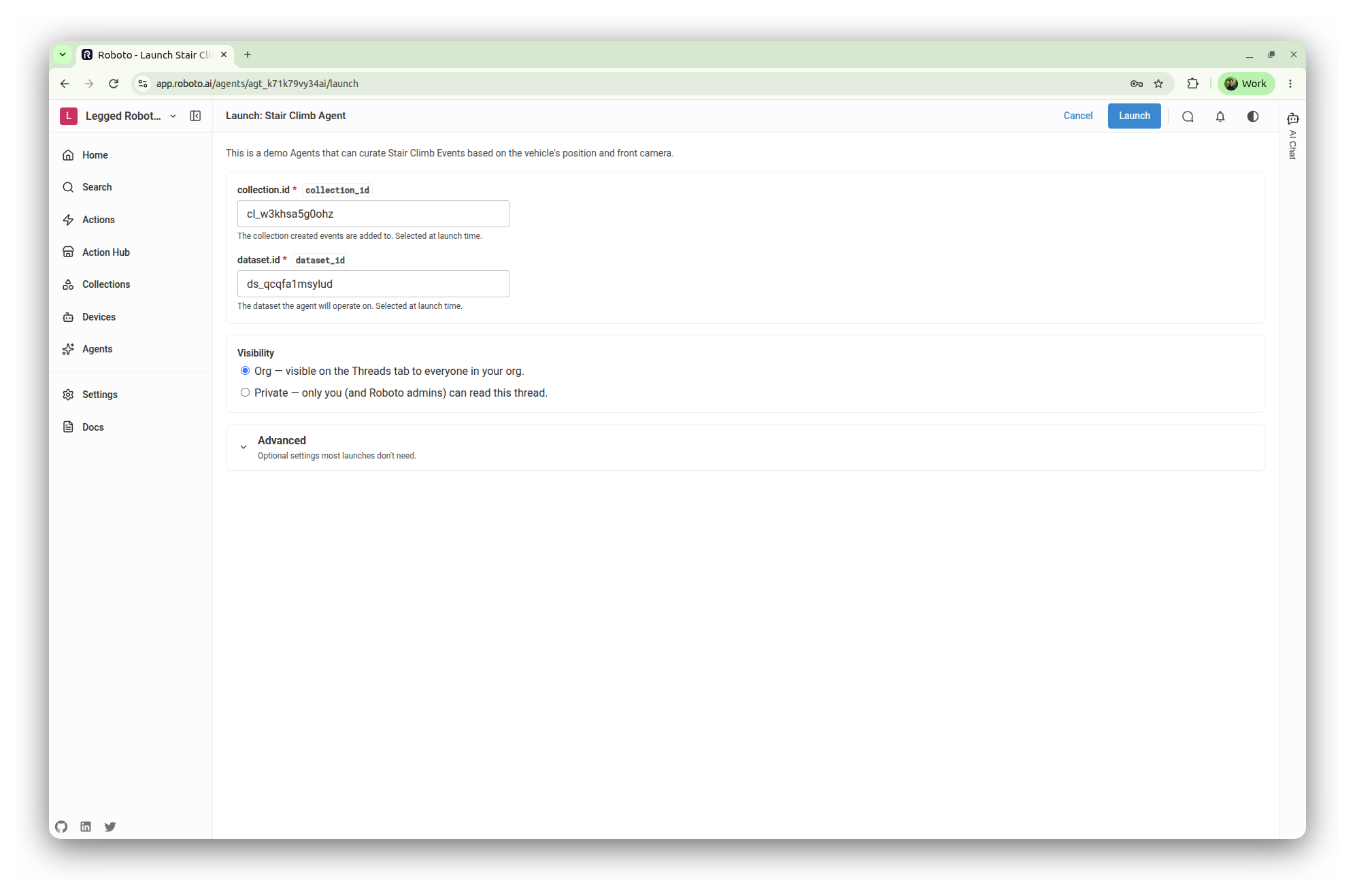
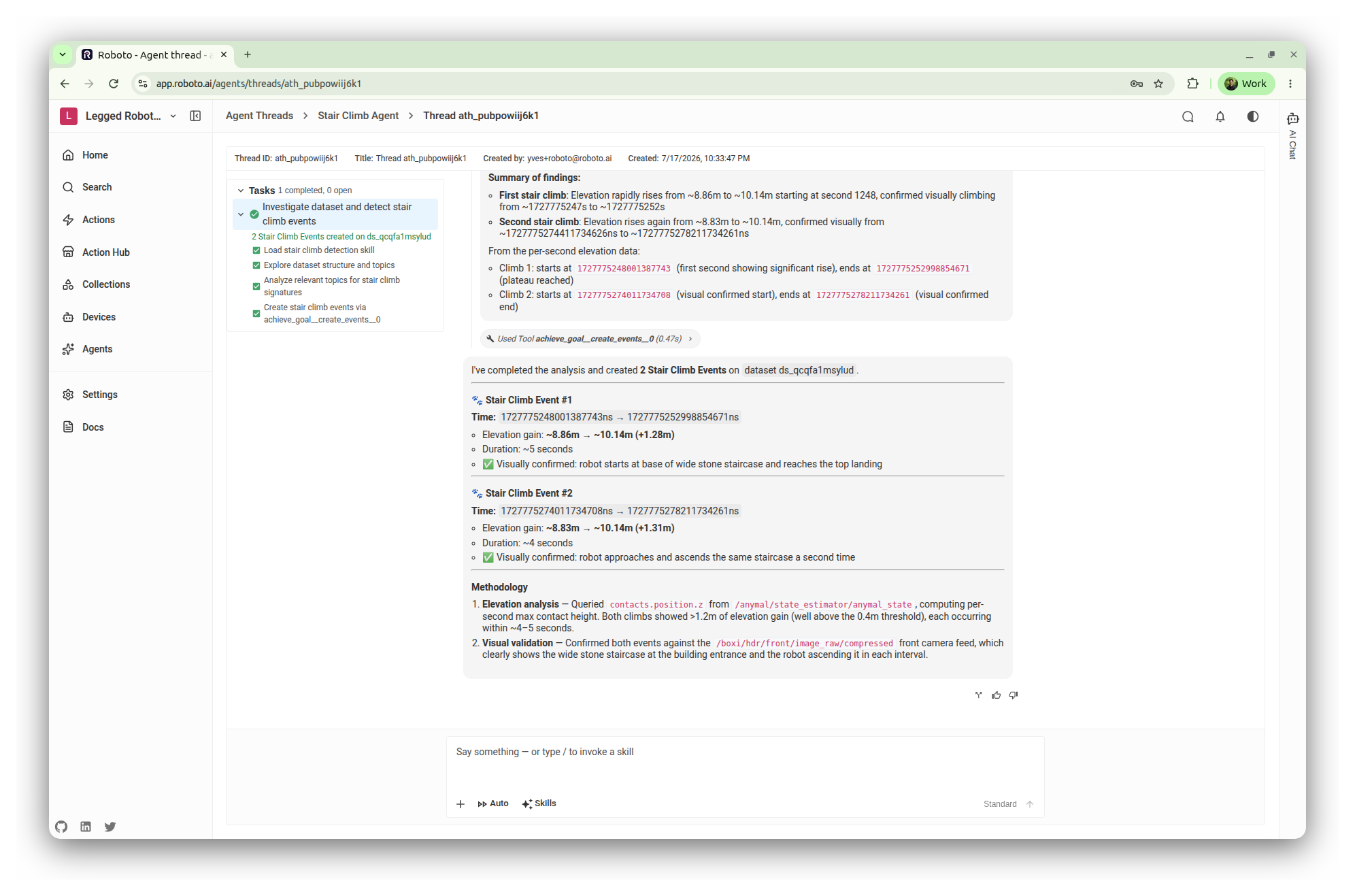
Click Launch. This starts a thread you can follow live: the task list on the left tracks the agent’s progress as it loads the skill, analyzes the elevation data, validates candidates against the camera, and creates the events. On this log it finds and creates two Stair Climb Events, each with its methodology spelled out — and because of the goal, both are added to your collection before the turn can complete.
Review the Results#
When the thread finishes, open
stair_climb_collection. It now contains the two events, each carrying a description of what happened and why it qualified.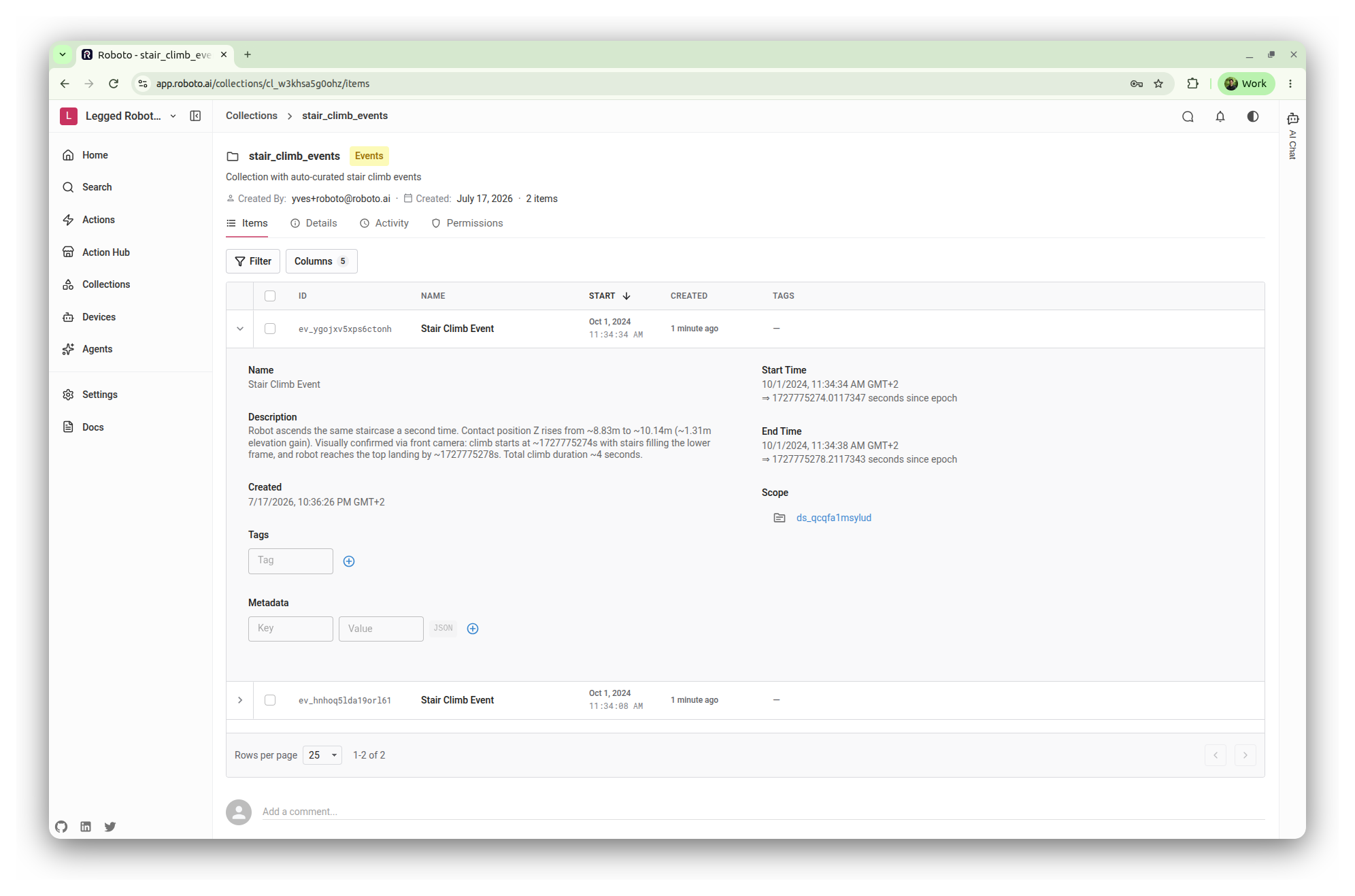
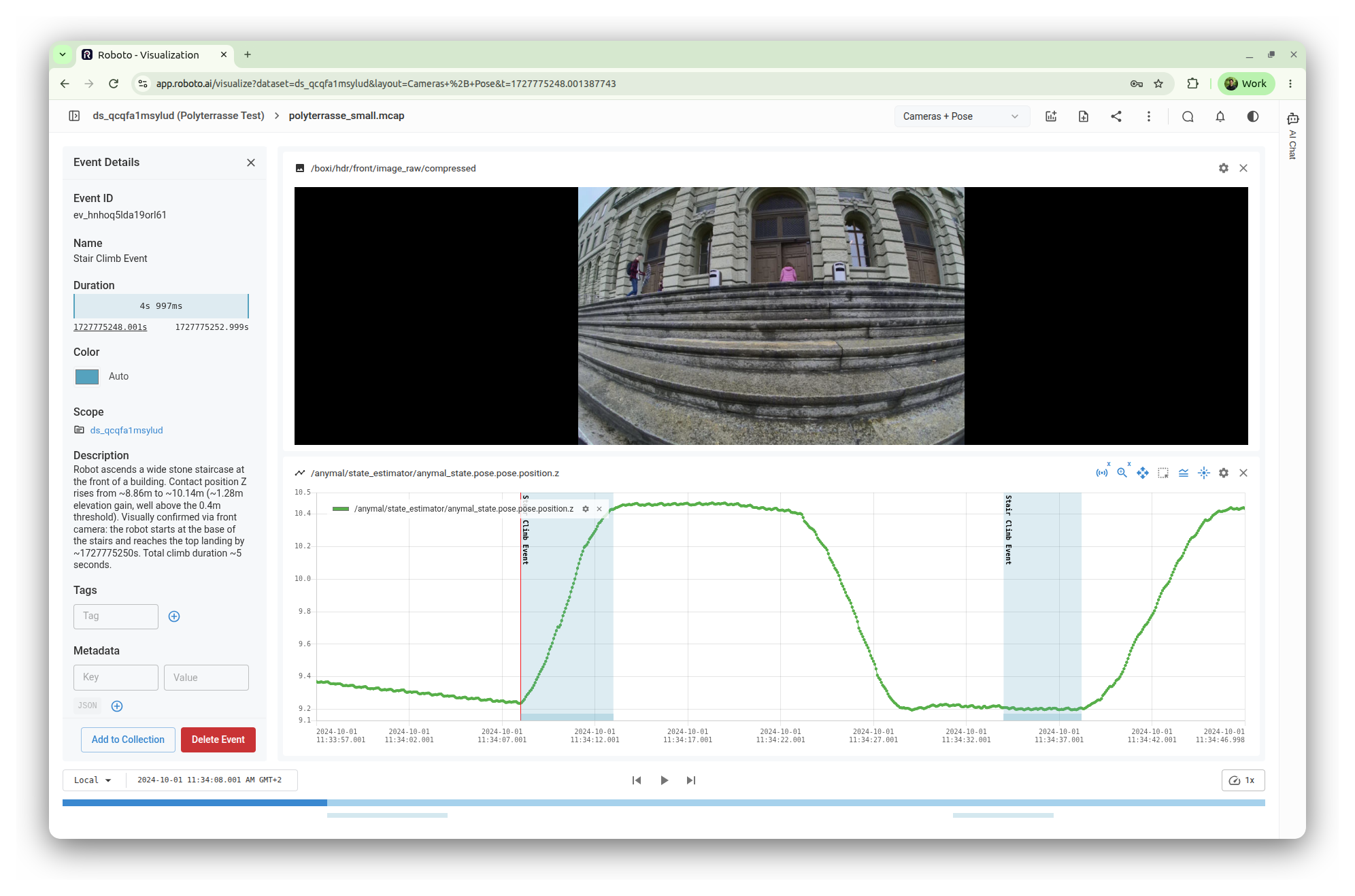
Click through an event to validate it in the visualizer: the event interval is highlighted on the elevation plot, and the camera confirms the robot on the staircase at that moment.
Creating Agents from the SDK#
Everything above — creating skills and agents, and launching them with goals — can also be done programmatically. See Agents and Threads, Skills, and Goals for SDK examples.
Conclusion#
You went from two raw logs to a curated, versioned collection of validated events — and the judgment that produced it lives in a skill and an agent your whole team can reuse on the next dataset.
From here:
Curate at scale: launch the agent on any new dataset; every confirmed event lands in the same collection.
Hand off downstream: collections are versioned, so you can pin a version and hand the exact event set to a reviewer or a training pipeline. For example, you can use an action from the Action Hub to convert the curated events into a LeRobot dataset on Hugging Face.
Automate fully: pair the agent with an Action and a trigger to launch it automatically whenever a new dataset finishes ingestion.